- Downloads
- 174.5K
- Mod loaders
- fabric
- Minecraft versions
- 26.2, 26.1.2, 26.1.1, 26.1, 1.21.11, 1.21.10, 1.21.8, 1.21.7, 1.21.6, 25w14craftmine, 1.21.5, 1.21.4
- Categories
- challenging, lightweight, optimization
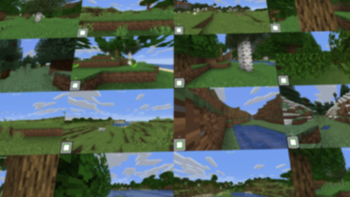
SpeedrunPack screenshots
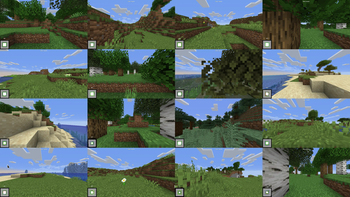
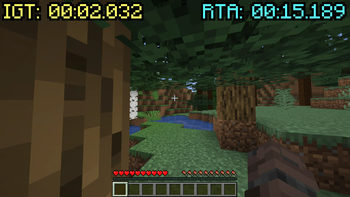
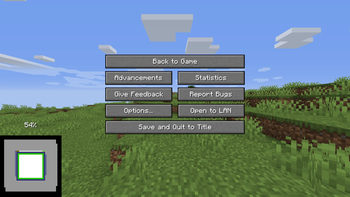
About this modpack
SpeedrunPack
Contains all mods that are verifiable on speedrun.com for modern versions of Minecraft.
Includes:
- SeedQueue - Generate many worlds at once with a built-in wall screen on a single instance
- WorldPreview - Preview worlds while they are still generating, allowing you to reset early
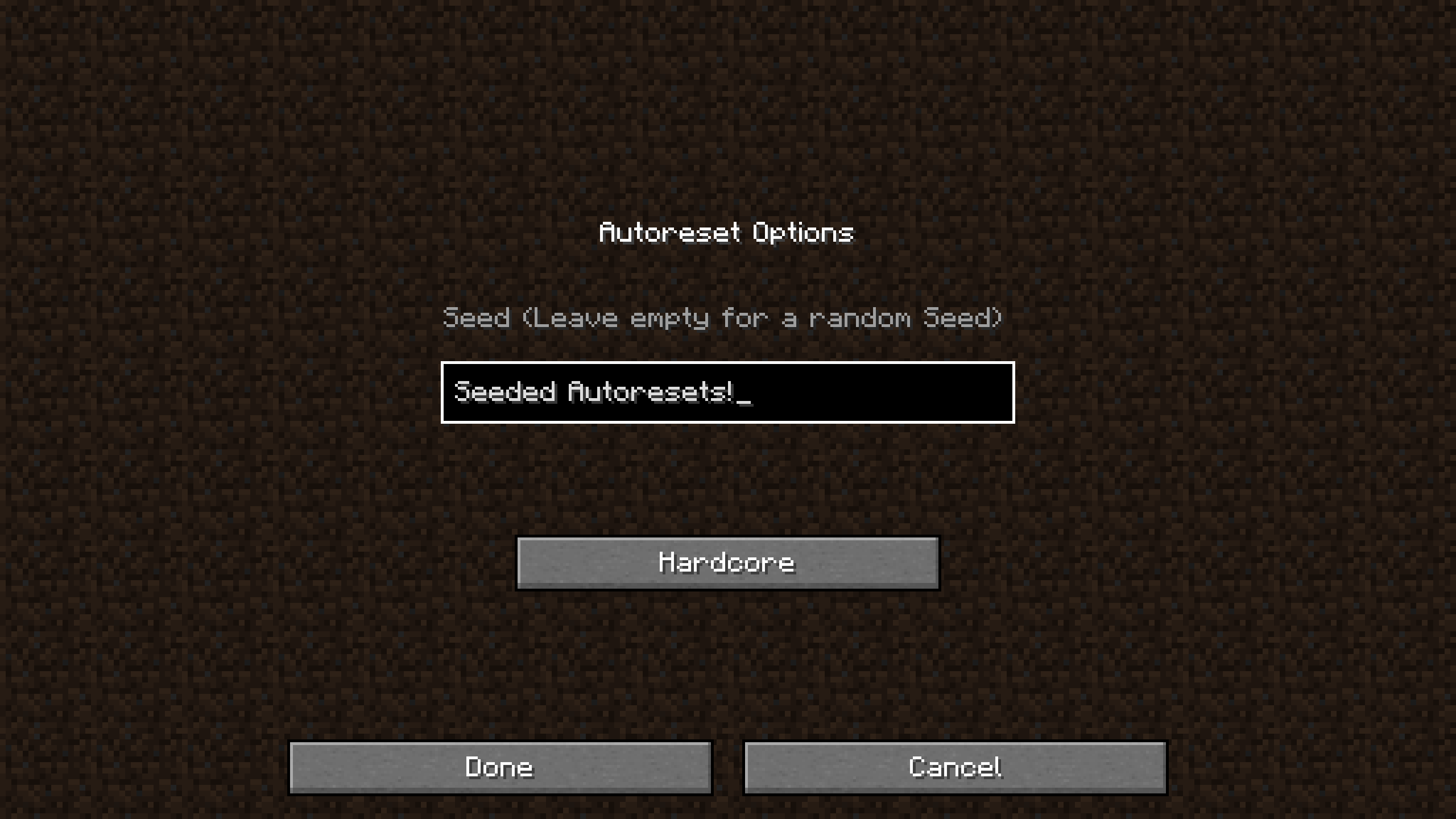
- Atum - Automatically creates a new world when you leave one, with a keybind to reset instantly
- MCSR Fairplay - Provides verification and anti-cheat functionality for MCSR
- Many many performance mods to increase FPS and make world generation faster
Installation
Java 17+ is required - [Installation Guide](https://gist.github.com/maskersss/89428e4bb1cb64b4e7b9c6346dbf1732)
---
Mac: You can follow these instructions to install everything except the mods, since the modpack does that bit for you. (Excluding Mac Sodium)
<details><summary>Modrinth App</summary>
Browse -> Search for SpeedrunPack -> Click Install
> Optionally, navigate to the Versions tab to select a version to install
To Install Java
View Instance -> Options
Override global java installations -> Auto detect -> Select Java 21
</details>
<details><summary>Prism Launcher & MultiMC</summary>
Add Instance -> Modrinth -> Search for SpeedrunPack -> Select OK
> Optionally, select a version to install in the dropdown
To Install Java
Edit Instance -> Settings -> Java
Java Installation -> Auto-detect -> Select Java 21 -> Skip Java Compatibility Checks
</details>
<details><summary>ATLauncher</summary>
Packs -> Modrinth -> Search for SpeedrunPack -> New Instance -> Install
> Optionally, select a version to install in the dropdown
To Install Java
Instance -> Settings -> Java/Minecraft
Runtime Override -> Select Java 21
</details>
What Minecraft version should I choose?
Unsure? -> 1.16.1
<details><summary>Why?</summary>
You might think you should use the latest version of Minecraft, but there are many reasons that make 1.16.1 the most popular version for speedrunning. Not only is it the fastest version of the game, it also relies way less on RNG to complete a run than newer versions.
Because of this, 1.16.1 gets the most support when it comes to speedrunning specific mods, resources, and guides.
However, other versions of Minecraft are still popular to speedrun. 1.15.2 is popular due to being the last version before The Nether Update, which dramatically changed Minecraft speedruns. This means that the speedrun route for 1.15.2 and below is very different from newer versions of the game.
Of course, if you still want to speedrun the latest versions of the game, go ahead! Just know that it will be very different from what most people play: you will find piglin brutes in bastions; the rates at which you get ender pearls from piglins are much worse; the new world generation makes getting to the nether difficult; the F3 pie chart works differently; and much more.
</details>
My settings keep reverting to defaults!
This is due to the StandardSettings mod, which changes your settings to a preset default every time you load a new world.
To fix this, you can either disable the mod or set it up to revert to the settings you choose.
Steps
- In the options menu, click on the Mod Configs button (the book icon)
- Open the StandardSettings config
- To disable StandardSettings set 'Use StandardSettings' to 'OFF'
Otherwise, change the settings in this menu to the ones you would usually use. You can press 'CTRL+F' to search for a setting.
</details>
How to set up SeedQueue (MC 1.16.1/1.15.2 Only)
> Generate many worlds at once on a single-instance using SeedQueue
Here's a video guide to setup SeedQueue. The guide is for MultiMC, but the steps should be similar in most other launchers. You don't need to watch the separate set-up video mentioned as the modpack does that bit for you.
Other Resources
[Toolscreen](https://github.com/jojoe77777/Toolscreen?tab=readme-ov-file#toolscreen) - Program for overlays, instant resizing, and more
[Ninjabrain Bot](https://github.com/Ninjabrain1/Ninjabrain-Bot) - An accurate stronghold calculator legal for Minecraft speedrunning
[Jingle](https://github.com/DuncanRuns/Jingle) - An all-inclusive Minecraft speedrunning application
[OBS Studio](https://obsproject.com/) - Free and open source software for video recording and live streaming
[The MCSR Practice Map](https://github.com/Dibedy/The-MCSR-Practice-Map/releases/latest) - All-in-one practice map
[MiniPracticeKit](https://github.com/Knawk/mc-MiniPracticeKit) - Practice splits on any instance
& more at [MinecraftSpeedrunning.com](https://www.minecraftspeedrunning.com/public-resources)
---
> This is an unofficial source and may not always be up-to-date. The official source for legal mods can be found here.
Modpack wiki coverage
Orca uses the project's published metadata and version files as the source of truth. Item, block, mob, recipe, structure, dimension, GUI, and mechanic pages are added after their included mod files are extracted and attributed.